Submit, cancel, update, and process export/import approval requests of CRM contact data in HubSpot.
-> The requester should select approvers from their region.
-> The approver should only review requests from their region, unless providing escalated support.
-> If the wrong region and users are selected, cancel and resubmit the request.
List of HubSpot Super Users and Regional Approvers
Submitting an export request
Go to the CRM contact source you want to export, for example a Segment(Lists) and start the export. Search, add, order or remove columns for the export. FORM submission exports are not included in Export Request Control and do not require approval. 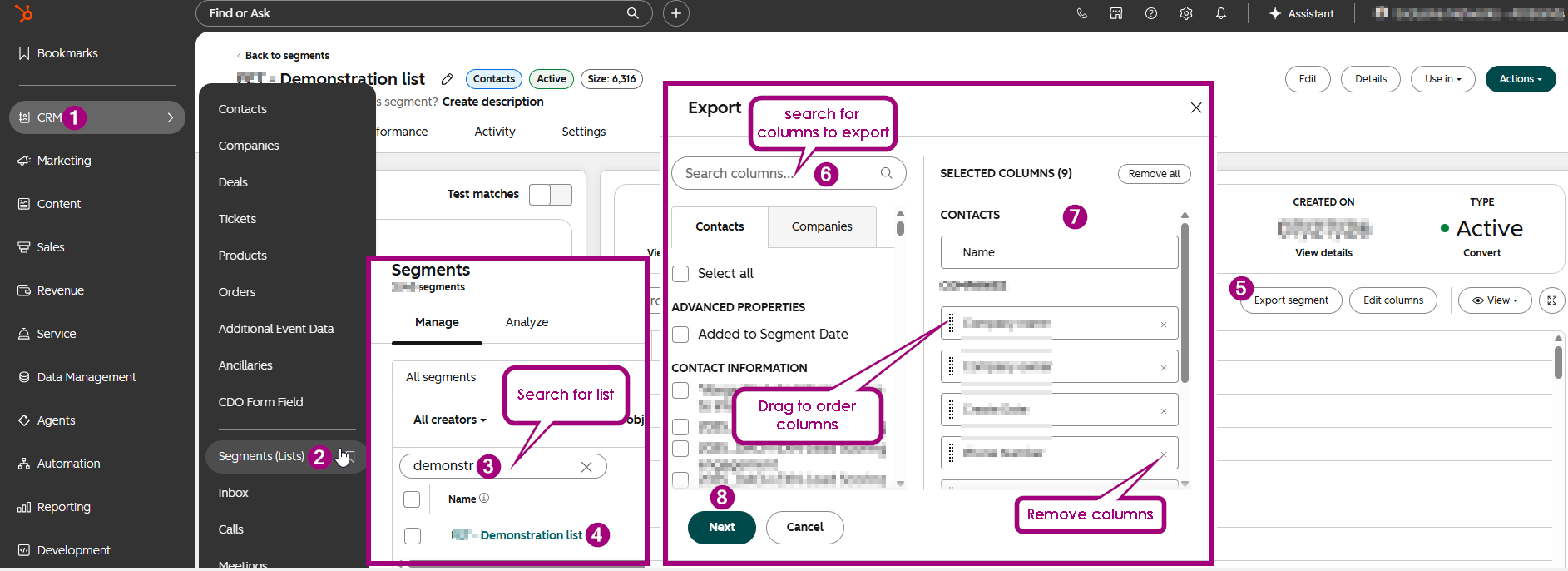
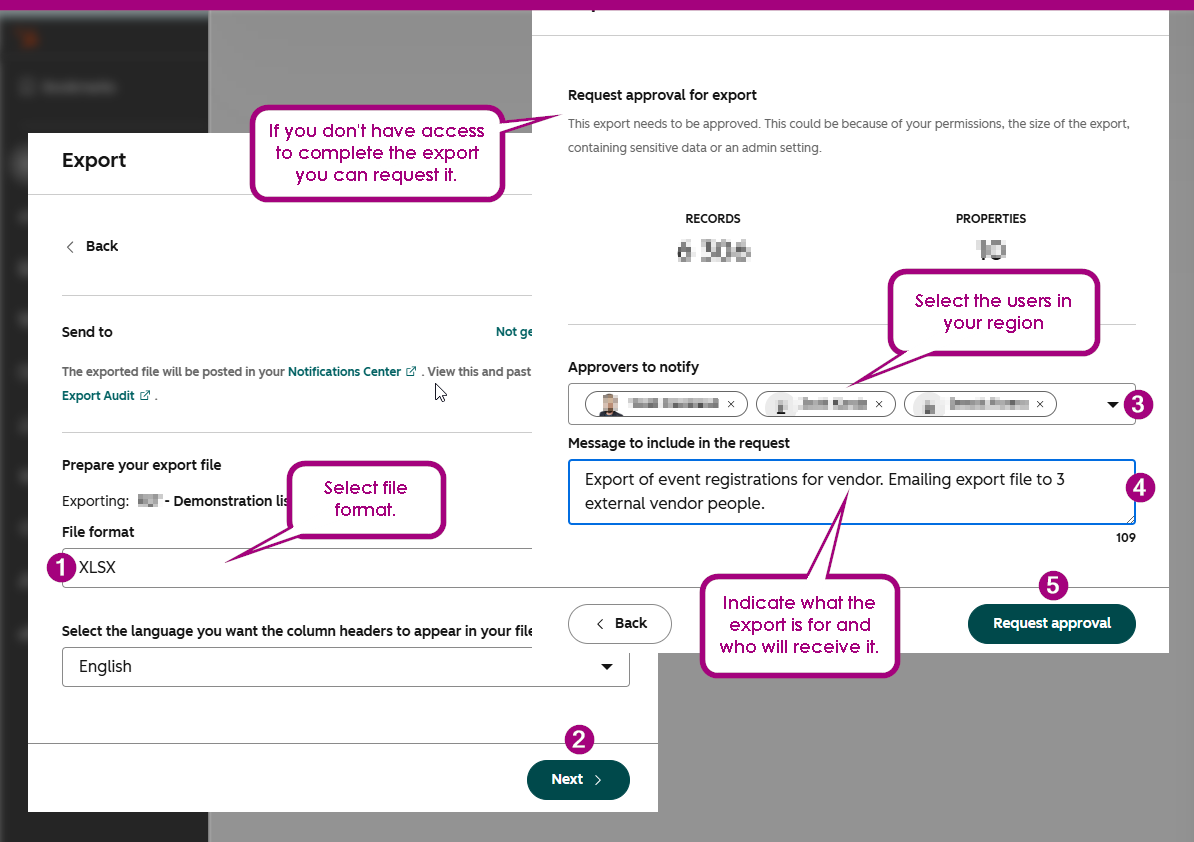
Select the file format, language and approvers in your EXN region - NE, CE, SE, META, APAC, or NA. HubSpot does not support approver groups. Approvers must be selected individually. Add a short approval note that includes business reason and who will get access to the export. Then Click 'Request approval'. A link to your request will appear at the top of the page. A notification will be sent when the export is reviewed. You can monitor the request under Settings > Import & Export.
If your request is urgent and your regional approvers have not responded, create a new request and select all regional HubSpot Super Users.
Cancelling an export request
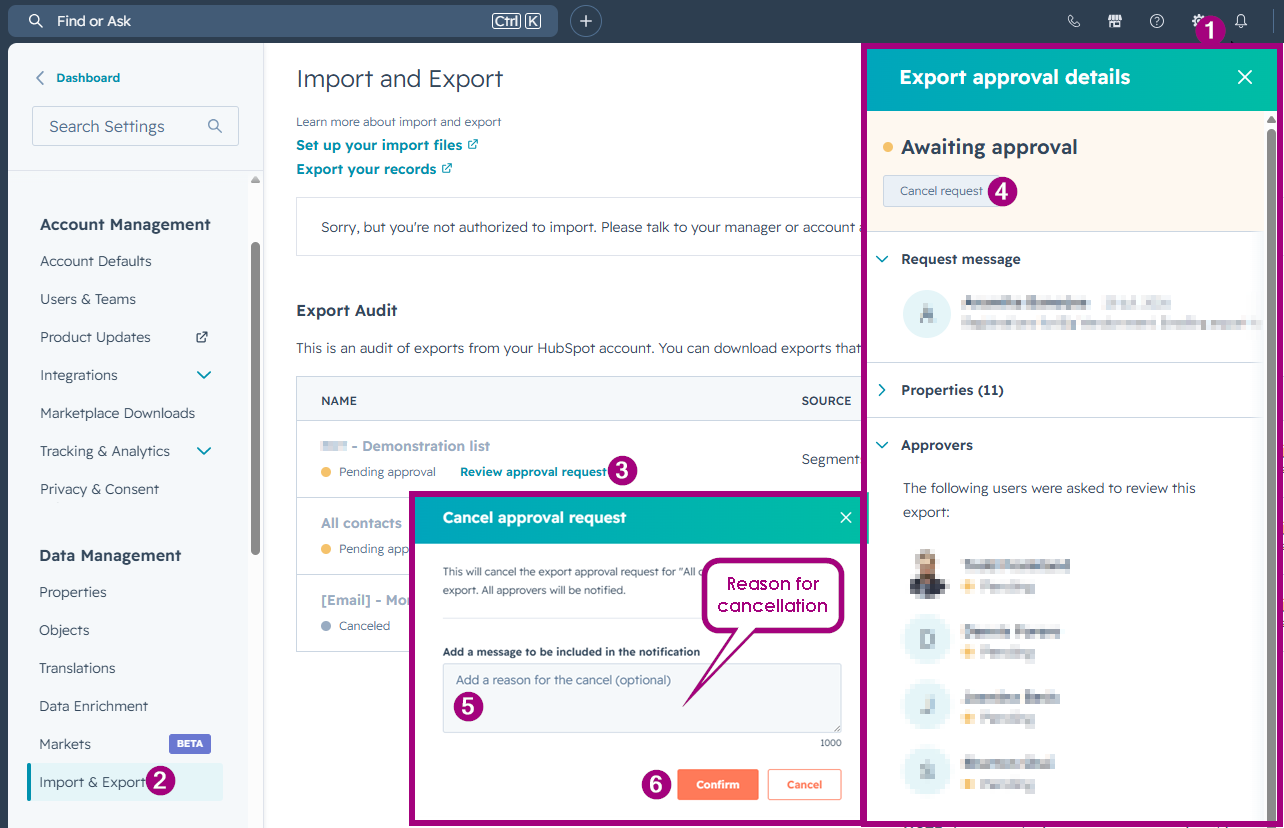
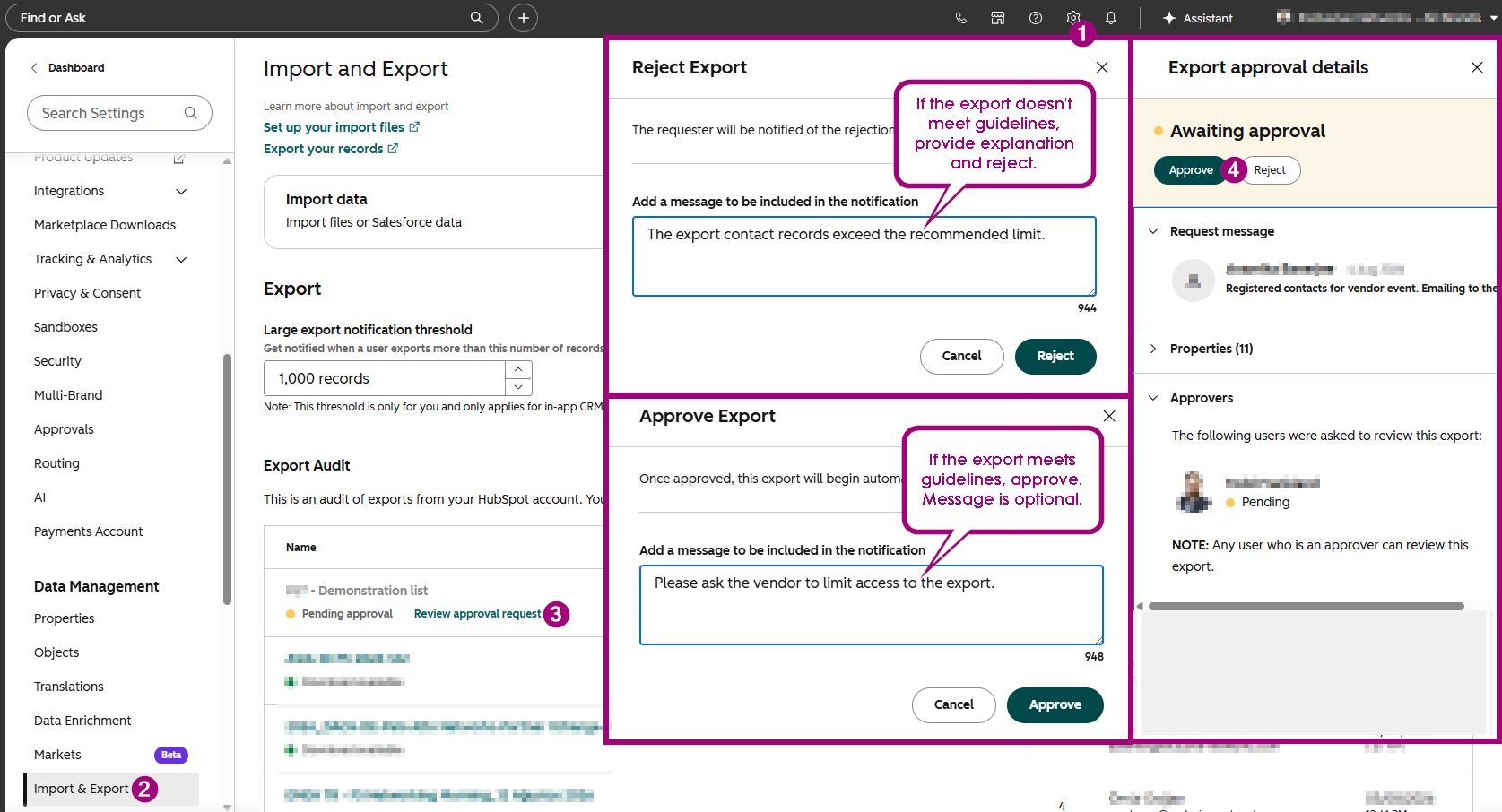
Use this if the request is no longer needed, was submitted in error, or was sent to the wrong regional users. Go to Settings > Import & Export > find the request under Export Audit > click 'Review approval request' > Click the 'Cancel request' button and enter the reason for the cancelation.
Processing an export request
Use this process if you have been been provided approval permissions for your region. Go to Settings > Import & Export > find the request under Export Audit > click 'Review approval request' > review the properties being exported and the request message > Approve or Reject the request. If multiple approvers are assigned, only one approval is required. Notifications can be enabled to alert approvers when a request has already been reviewed.
Submitting an import request
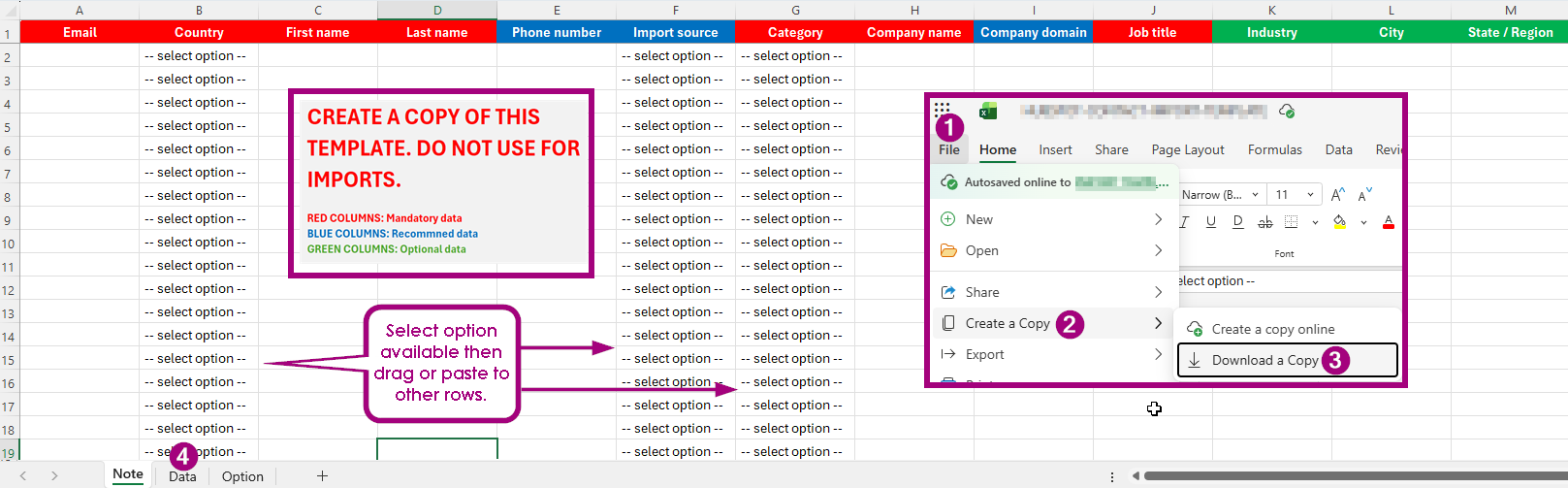
Use this process when importing contacts into HubSpot. For all other import types, such as Companies, contact your regional HubSpot Super User. Open the import template download a copy (Do not use the template itself), add contacts and send to your regional HubSpot Super User. The Super User will reply with any questions or confirm when the import has been completed.
NOTE! Imports can only be completed by HubSpot Super Users. If your regional Super User is unavailable and your request is urgent, please contact another regional Super User for assistance.
RED COLUMNS: Mandatory data | BLUE COLUMNS: Recommended data | GREEN COLUMNS: Optional data
Processing an import request
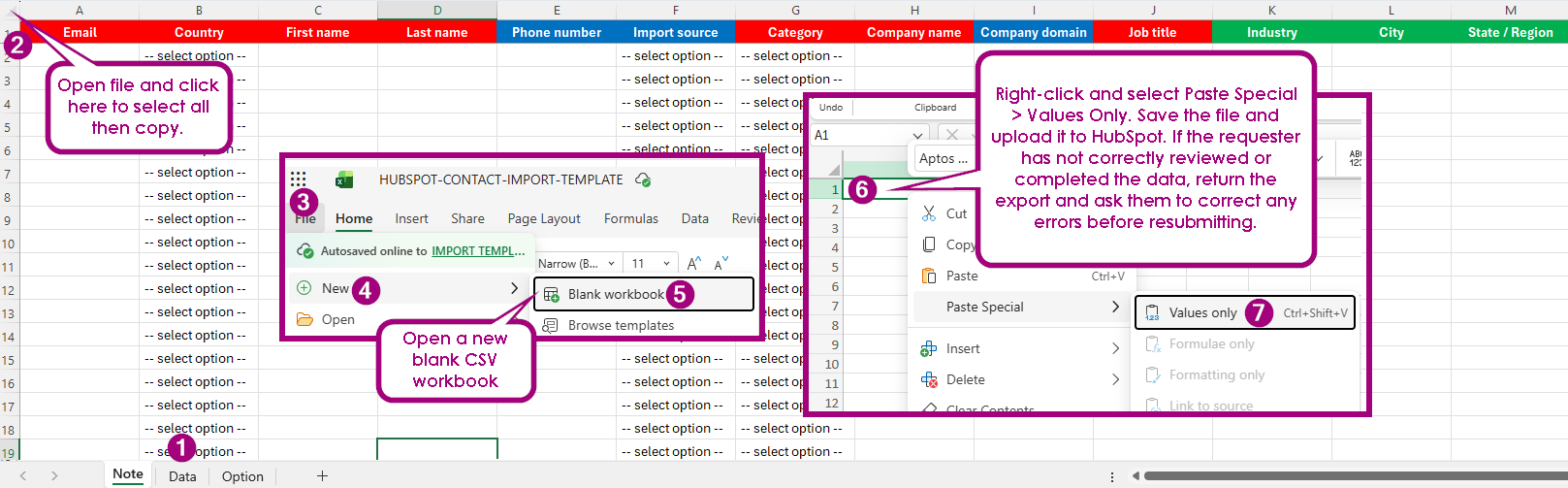
Use this process if you are a HubSpot Super User. Open the import file provided by the requester, review the data, and either approve and proceed with the import or reject and return the file for correction. Mandatory columns should be completed.
Import the data into HubSpot and, if any errors occur, take screenshots of the errors, return them to the requester, asking them to fix the issues and resubmit the file. Notify the user once the file has been imported.
Setting notifications
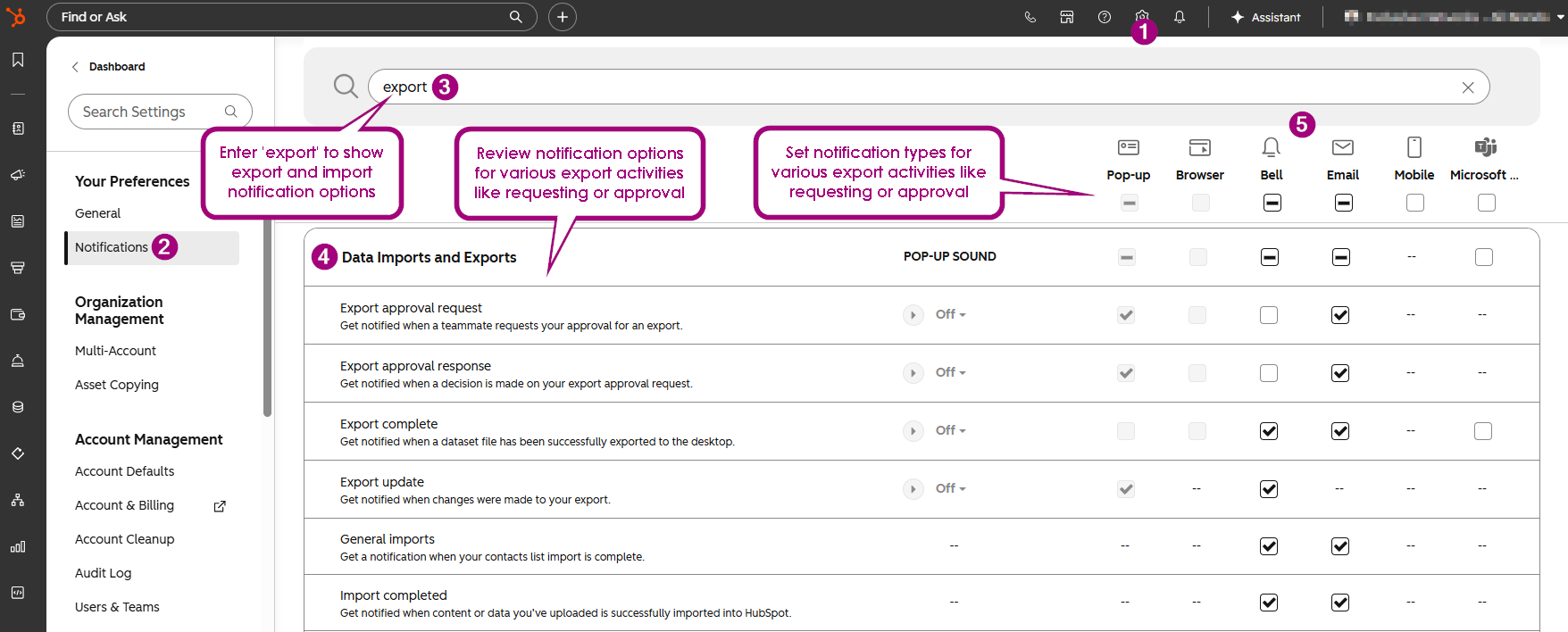
Customise import and export notifications. For example, approvers can configure notifications to ensure export requests are reviewed promptly, while requesters can receive alerts when requests are approved or rejected. Go to Settings > Notifications > search for "Export" >review and configure the relevant notification types and delivery options.